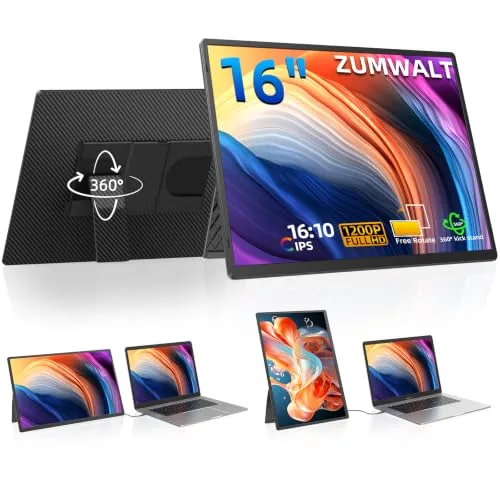
The ZUMWALT 16.1" panel clips onto your laptop and adds a second FHD screen in minutes — plug-and-play over a single USB-C cable, no driver, and thin enough to fold flat and travel with you.
ZUMWALT's 16.1" panel adds real workspace to a single laptop screen without the bulk of a full second monitor. At 1920x1200 resolution and a 16:10 aspect ratio, it gives about 20% more vertical space than a standard 14" widescreen extender — useful for a tall spreadsheet, a long document, or simply running two full apps side by side. A detachable magnetic stand rotates a full 360° between landscape and portrait, the panel runs on a single full-featured USB-C cable with no driver to install, and at 1.48 lbs with a 0.31" profile it folds flat into its own PU-leather cover for travel.
Real Specs, Not Just Marketing Copy
Pulled straight from ZUMWALT's own listings.
01
16" of Extra Workspace
The 16.1" panel adds a second 1920x1200 screen next to your laptop's own display for spreadsheets, documents or a second app.
02
One Cable, Plug & Play
A single full-featured USB-C cable carries both video and power — no driver to install.
03
Just 1.48 lbs
The thinnest and lightest panel in the ZUMWALT range, at a 0.31" profile.
04
360° Rotating Magnetic Stand
Detach the panel from its stand and rotate it between landscape and portrait viewing.
05
Built to Travel
Folds flat with a PU-leather cover that doubles as a mousepad on the road.
The ZUMWALT 16.1" Monitor
ZUMWALT's Canadian listing carries the 16.1" panel — the full lineup of panels and cables above is sold on the US store.
ZUMWALT 16.1" 1200P Portable Monitor
The Largest Panel in the Lineup, 16:10 Aspect Ratio
The biggest screen ZUMWALT makes: a 16.1" 1920x1200 IPS panel at a 16:10 aspect ratio, which works out to about 20% more vertical workspace than a standard 14" widescreen extender — noticeably more room for a spreadsheet or a tall document. A detachable magnetic stand rotates a full 360° between landscape and portrait, and at 1.48 lbs with a 0.31" profile it's the thinnest single panel in the range. A single full-featured USB-C cable carries both video and power for a one-cable setup, with an HDMI cable included as a fallback for laptops that need it. A PU-leather cover doubles as a mousepad when you're using the panel on the road.
How to connect a ZUMWALT panel to your specific laptop's ports.
Setup Steps
Unfold the panel and set the stand
Unbox the extender and unfold the panel(s) flat. On the P7 and S8, the hinge clips onto the top of your laptop lid without a top clamp or baffle; on the detachable 15.6" and 16.1" models, attach the included magnetic or kickstand base and set it to a stable angle.
Check which USB-C ports your laptop has
Look for the full-featured Type-C symbol (a lightning bolt or SS/D icon) next to your laptop's USB-C ports — a port without it can charge a device but won't carry a video signal. This determines which of the next two connection methods to use.
Connect with two USB-C cables, if your laptop supports it
If your laptop has two full-featured Type-C ports, connect two USB-C-to-USB-C cables — one to each — for video and power in one step, no driver needed.
Or connect with USB-C + HDMI, if it only has one
If your laptop has one full-featured Type-C port plus an HDMI port, run a USB-C cable to the first panel and the included HDMI-to-Type-C cable to the second, then connect a USB-A-to-USB-C cable to the HDMI side for extra power if the screen looks dim.
Or connect through the H5-T cable, if neither applies
If your laptop has no full-featured Type-C port at all — common on M1/M2/M3/M4 MacBooks and on USB-A-only laptops — connect through the H5-T adapter cable instead. Install its "USB Display" driver the first time (Windows: run the driver file; Mac: move the app to Applications and enable it under Privacy & Security) before video appears.
Power the panel if the screen looks dim
If brightness looks low after connecting, plug the included power adapter into the panel's dedicated power port — this pulls power directly from an outlet instead of your laptop's battery.
Choose Extend, Mirror or Portrait mode
Open your OS's display settings (Windows: Display Settings; macOS: Displays) to choose Extend (separate workspace per screen), Mirror (duplicate your main screen) or rotate the panel and set it to Portrait for reading or coding.
Fold flat and pack for travel
Fold the panel(s) back against the stand or laptop lid and slide the whole setup into the included carry sleeve or bag before packing it.
Troubleshooting
Screen shows "No Signal"
Re-check your cable combination against step 3-5 above — this is almost always a mismatch between your laptop's actual port type and the connection method being used, not a defective unit.
M1/M2/M3/M4 MacBook not detecting the panel
Apple restricts video output on some Type-C ports on these chips even when the port charges normally. Use the H5-T adapter cable and install its driver rather than a direct USB-C connection (note: the S8 model is not compatible with these chips even with the H5-T cable).
Picture is dim or flickering
Connect the included power adapter to the panel directly — running purely off a laptop's USB-C power delivery is sometimes not enough for full brightness, especially with two panels connected at once.
Frequently Asked Questions
Not for most setups. The P7, the 15.6" detachable model and the 16.1" monitor are all plug-and-play over USB-C — connect the cable and the extra screen shows up automatically. The one exception is the H5-T adapter cable, used for USB-A ports or non-video USB-C ports, which needs a one-time "USB Display" driver installed on Windows or macOS before video output works.
It depends on your MacBook's port, not just the chip. If your Mac has a full-featured Type-C port that outputs video, a ZUMWALT extender connects directly. If it doesn't, you'll need the H5-T cable, which is ZUMWALT's listed fix specifically for M1/M2/M3/M4 MacBooks without a video-capable Type-C port. The S8 model is the one exception — ZUMWALT states it isn't compatible with M1/M2/M3 chips even with the H5-T cable, so the P7, detachable 15.6" or 16.1" monitor are the better pick for those Macs.
The P7 clips onto your laptop lid with a fixed hinge and runs two 15.6" panels for a true triple-screen setup. The 15.6" detachable model instead uses a stand you can pull the panel off of and rotate 360°, which suits someone who wants one flexible screen rather than a locked triple-monitor rig. The 16.1" monitor is the largest single panel in the lineup, at a taller 16:10 aspect ratio with about 20% more vertical space than a standard 14" extender, and it's also the thinnest and lightest of the three.
Up to two extra panels with the P7 (for a triple-screen total including your laptop's own display). The other models are single extra panels, giving you a dual-screen setup. All of them support Extend, Mirror and Portrait modes, so you can choose to expand your workspace, duplicate your screen for a presentation, or rotate to portrait for reading code or long documents.
The listings note compatibility with Switch specifically, alongside Windows, Mac, Chrome OS and Android DeX laptops and tablets. Support for other consoles like PS5 isn't listed by ZUMWALT for every model, so check the specific product page for your device before buying if you're not connecting a laptop.
It varies slightly by model, but a typical kit (the S8, for example) includes the monitor panel(s), a USB-C-to-USB-C cable, an HDMI-to-Type-C cable, a USB-A-to-USB-C cable and a carry bag. The P7 and 16.1" monitor also include a magnetic or foldable stand and, on some models, a power adapter for extra brightness. Check the "What's in the Box" section on each product's own listing for the exact contents.
This almost always means the connection path doesn't match your laptop's ports. If you're using two USB-C cables, confirm both laptop ports are full-featured (support video, not just charging). If your laptop only has one video-capable port, switch to the USB-C + HDMI cable combo instead. If your laptop has no full-featured Type-C port at all, you'll need the H5-T adapter cable with its driver installed rather than a direct USB-C connection.
Not always — most setups run on power drawn through the connection cables themselves. If a panel looks dimmer than expected or won't turn on, connecting the included 5V/3A power adapter (where included) to the panel's power port restores full brightness without relying on your laptop to supply it.
The H5-T is a 2-in-1 USB-A/USB-C adapter that converts a standard USB-A port or a non-video-capable USB-C port into a working video output. You only need it if your laptop lacks a full-featured Type-C port — most commonly on M1/M2/M3/M4 MacBooks or older Windows laptops with USB-A-only ports. If your laptop already has two full-featured USB-C ports, or one Type-C port plus HDMI, you won't need it.
ZUMWALT lists a 12-month warranty on its laptop screen extenders. For setup help or a warranty issue, ZUMWALT's listings point buyers to contact the seller directly through Amazon, with a stated response window of about 24 hours.